
AI Video Background Remover
Remove Background from Video
Pull your subject off a cluttered background without a green screen or a rotoscope brush. Upload an MP4 or MOV clip, trim the shot you need on the timeline, choose a person or object, and let AI isolate the foreground. Download a transparent video without a tool watermark.
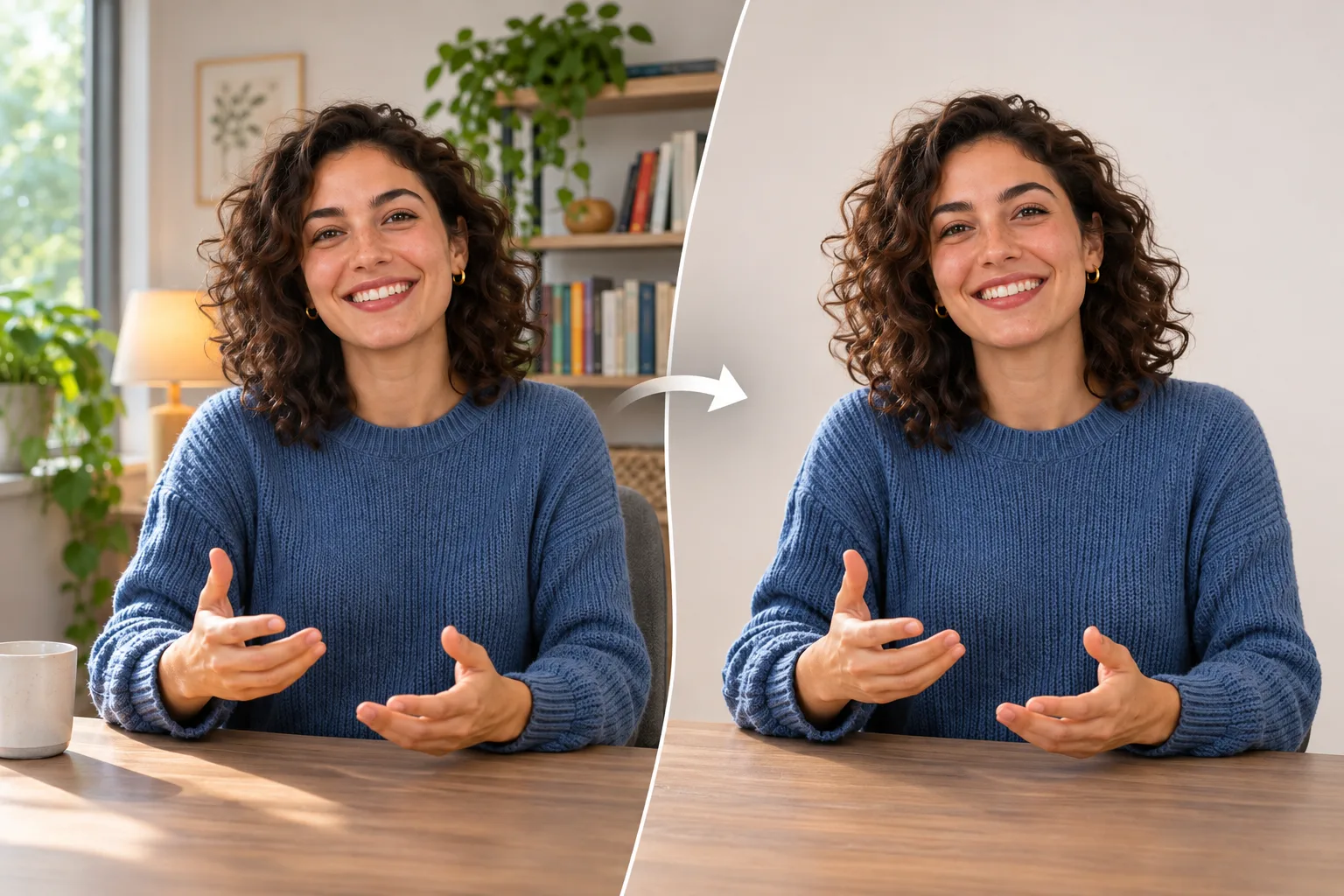
Preview a 3-second result before processing the full clip — transparent WebM, no tool watermark.
How to remove the background from a video

1. Upload your clip
Choose an MP4 or MOV, 3–60 seconds, up to 200 MB. Longer footage? Cut the shot you need first. This tool works on a clip, not the whole recording.

2. Choose your subject
Select person or object. AI segments the foreground and refines the edges without a prompt, timeline or green screen. Choose the subject type that best matches your footage.

3. Preview, then render
A 3-second preview costs 45 credits for longer clips. Process the full clip when the result looks right, then download transparent WebM without an added watermark.
What to put behind your subject
A transparent video gives you a clean foreground layer. Preview it against white, black, a green screen or a checkerboard in the browser. To export a new scene, a brand color or a solid-color MP4, place the downloaded WebM over that background in a compatible editor. Background colors here are for preview only; they are not burned into the download.

No green screen needed
A physical green screen needs even lighting and can be tricky around hair and shoulders. This AI video background remover segments the subject instead of keying a color. You can remove background from video recorded in a normal room, outside or in front of a bookshelf. Quality still depends on motion, foreground contrast and the complexity of the shot.
Why AI background removal beats blurring it
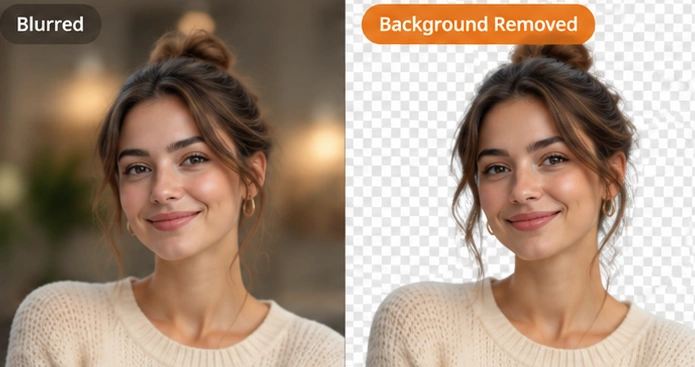
Blurring hides details but leaves the original location and shapes visible. A transparent foreground lets the subject carry the shot. Place it over a consistent backdrop for product demos, talking-head shorts or before-and-after content. Unlike an ordinary blur, the new background is under your control.
Who this is for
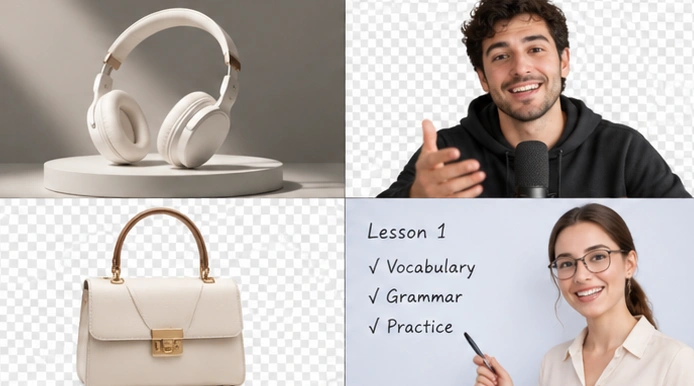
Product demos: put an object on a clean surface without clearing your desk. Talking-head shorts: isolate the speaker for TikTok, Reels and Shorts. E-commerce: use a consistent background across product clips. Courses and tutorials: isolate the presenter for a screen-recording overlay. Real estate: isolate a clear foreground subject for a short composited shot; this is not a dedicated sky replacement tool.
Before you upload: limits
MP4 or MOV input, 3–60 seconds per clip, up to 200 MB. Output is transparent VP9 WebM. Fast motion, glass, smoke and flyaway hair can be difficult. Preview first for complex footage. Audio retention and transparent playback depend on the output and browser. Preview costs 45 credits; full processing costs 15 credits per rounded-up second.

Remove video background: how the options compare
| Workflow | This tool | Green screen / chroma key | Manual rotoscoping |
|---|---|---|---|
| Subject selection | AI person or object | Color-based | Manual masks |
| Physical backdrop | Not required | Usually required | Not required |
| Transparent output | WebM | Depends on export | Depends on export |
| Editing effort | Upload and process | Light and key footage | Frame-by-frame work |
| Clip length | 3–60 seconds | Editor dependent | Editor dependent |
Need to erase a single object and keep the scene? remove objects from video.
Frequently asked questions
Transparent export, credits and video formats.