
How to Remove Text from Video Online (Free & Easy)
Remove text, captions, and watermarks from video online with AI — or use mobile apps and desktop editors. Step-by-step guide with free tools and burned-in subtitle tips.
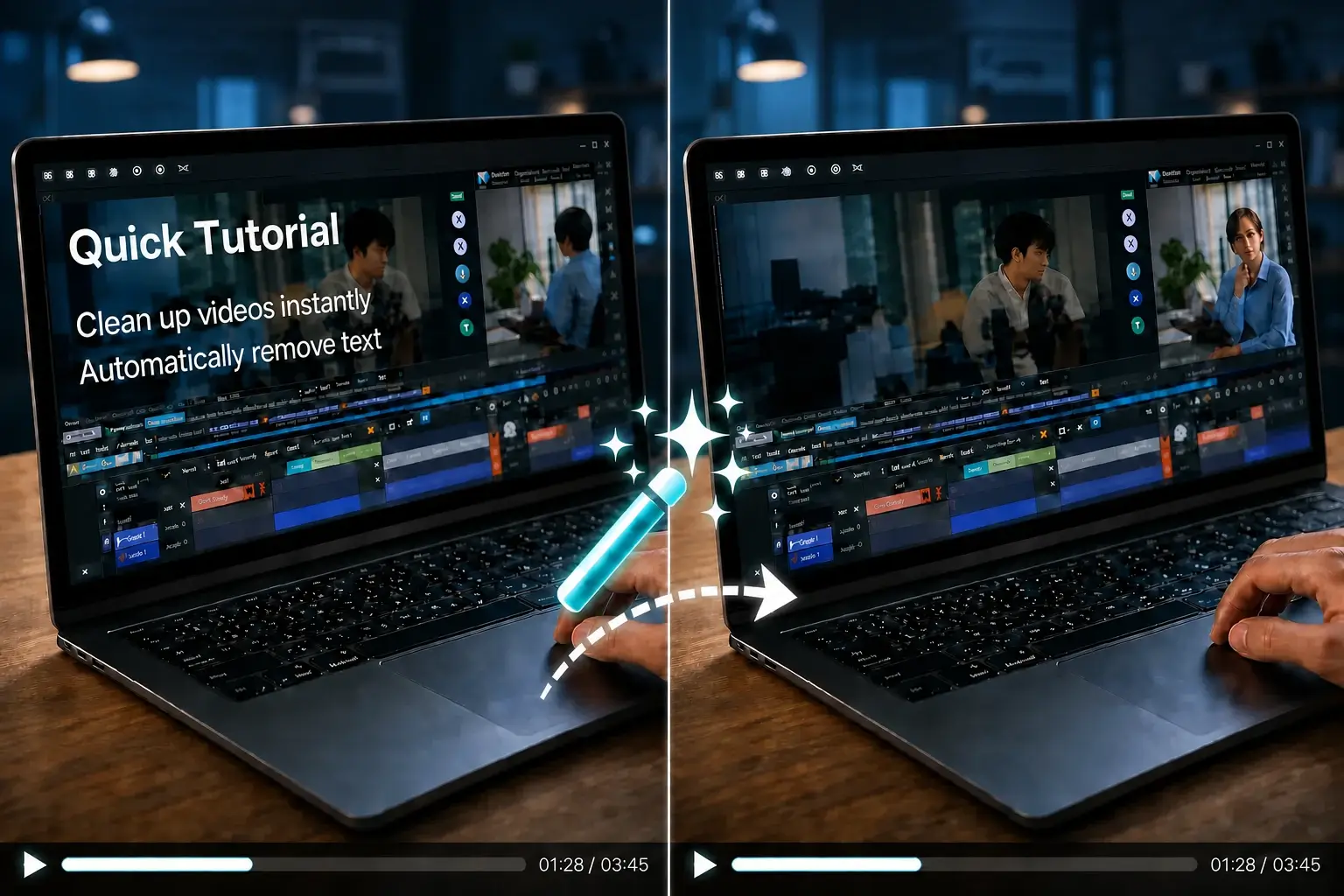
Yes, you can remove text, captions, and watermarks from a video without redownloading the file or re-editing it from scratch. The fastest way is an AI-powered online tool that detects the text and reconstructs the background behind it in seconds. Below, we cover four methods — from one-click automatic removal to manual desktop editing — so you can pick the one that fits your video.
What Kind of Text Can You Remove?
Before you start, it helps to know what you're dealing with. Videos carry a few different types of text, and they're not equally easy to clean:
- Subtitles and captions — soft text burned onto the frame after export.
- Burned-in subtitles — hardcoded into the video, so they can't be toggled off. These need AI inpainting to erase.
- Watermarks and logos — corner or center marks from stock sites, apps, or screen recorders.
- Lyrics or text overlays — text you added in an editor and no longer have the project file for.
Each method below handles a different mix of these. For the stubborn, hardcoded cases, stick with Method 1.
Method 1: Remove Text Automatically (Easiest)
The fastest way to erase text from a clip is an AI tool that detects the text region and fills in the background behind it. Here's the exact workflow using our free video text remover:
- Upload your video. Drag and drop the file — MP4, MOV, and WebM all work.
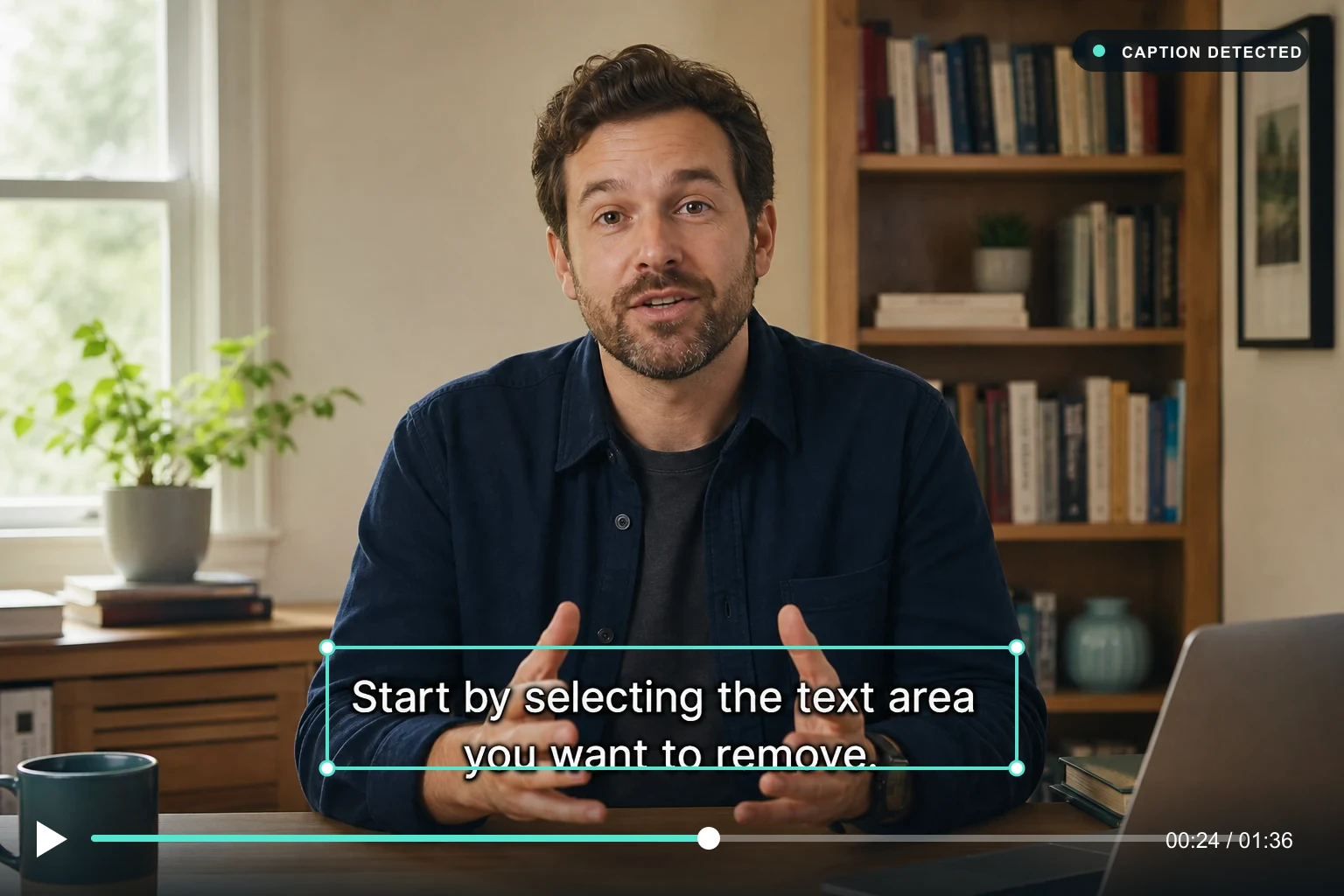
- Select the text area. The tool auto-detects text boxes; you can also draw a box over the caption or watermark you want gone.
- Choose the frame range. If the text only appears in part of the clip, select just those seconds to save processing time.
- Run the removal. The AI reconstructs the pixels behind the text, so you get a clean background instead of a blurry smudge.
- Export and download. Preview the result, then download the cleaned video in full resolution.



This method works for subtitles, watermarks, and logos alike. No timeline, no keyframes, no learning curve — you upload, box, and download.
Method 2: Remove Text on Your Phone
If the video lives on your phone, a mobile app can do the job without moving files to a computer. Apps like CapCut let you cover text with a mosaic or blur patch; a few AI apps can actually erase it cleanly.
The trade-off: phone apps usually blur or cover the text rather than reconstructing the background. If the text sits on a simple, flat area that's fine; if it's over detailed footage, use a desktop or online tool instead.
Method 3: Other Free Online Tools
You're not limited to one option. Several free web tools can strip captions from a video:
- Veed.io — has a dedicated "remove text" feature, with a free tier (watermarked output).
- Media.io — quick watermark and caption removal, good for short clips.
- Kapwing — solid editor with a text-removal brush, free with export limits.
They all follow the same box-and-erase pattern. Pick whichever fits your budget and file size — the technique is the same, the quality of the background fill is what differs.
Method 4: Use a Desktop Video Editor
If you already edit on desktop, you can do it manually:
- DaVinci Resolve (free) — use the Object Removal effect in Fusion or the newer Magic Mask to isolate and remove text. Steeper learning curve, but full control.
- Adobe Premiere Pro — Content-Aware Fill on a masked text region works well for clean backgrounds.
- Final Cut Pro — similar masking + fill workflow for Mac users.
Manual editing gives you the most control but takes the longest. It's worth it only if you need frame-perfect results on complex footage.
Step-by-Step: How to Remove Burned-in Subtitles
Burned-in subtitles are the hardest case because the text is part of the image itself — there's no subtitle track to turn off. Here's the reliable approach:
- Load the clip into an AI remover (see Method 1). Manual masking on hardcoded subtitles is painful because the text moves and changes every frame.
- Box the subtitle area, not individual letters. Cover the full line so the model can rebuild the whole strip.
- Process in segments. If subtitles run the entire length, split the video into 30–60 second chunks for cleaner results.
- Check the fill on motion. Watch a few seconds where the camera or subject moves — that's where AI fills can smear. If it does, re-run just that segment.
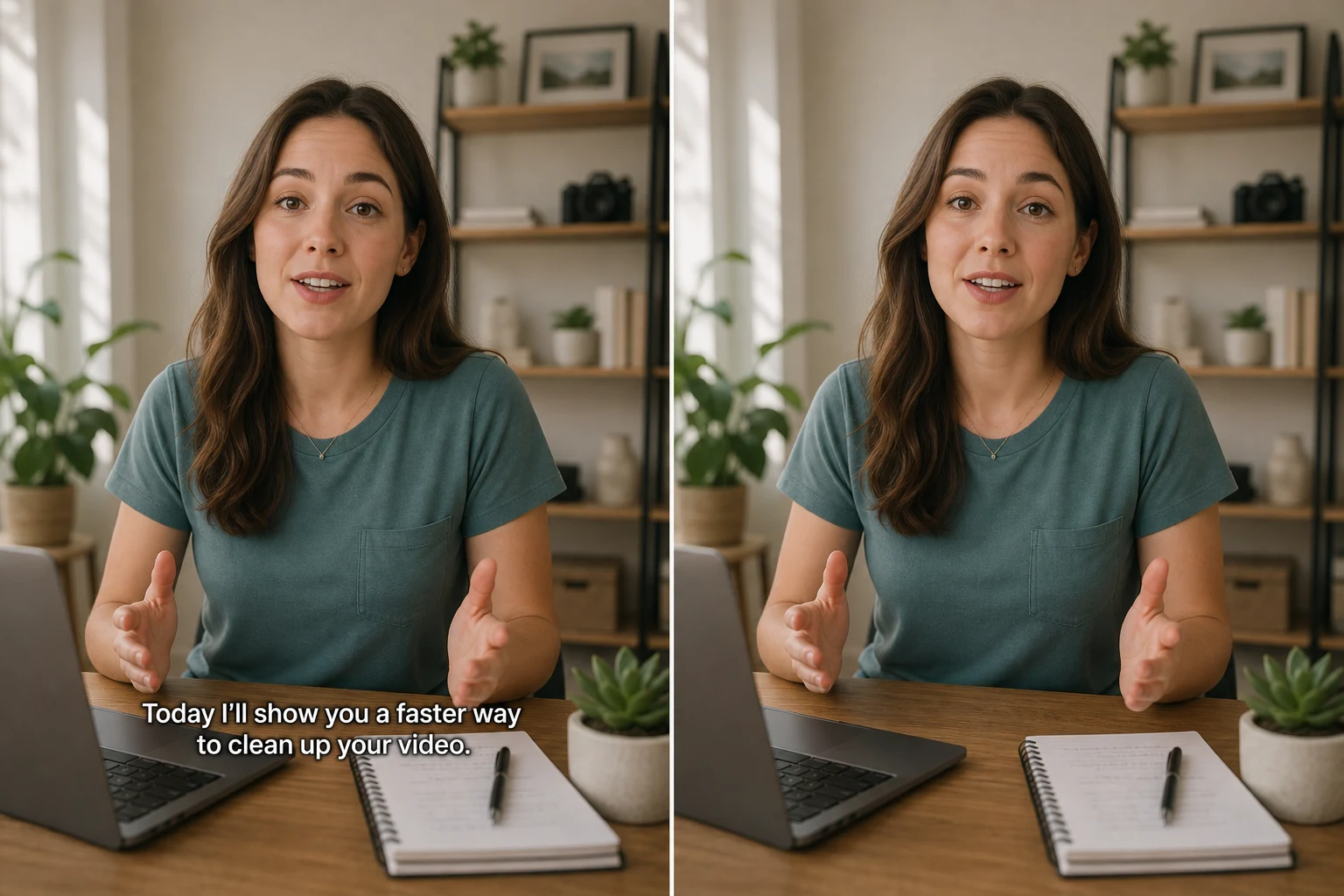
For a dedicated workflow on hardcoded captions — box the strip, preview the fill, then export — use the remove subtitles from video tool. The result won't be pixel-perfect on every frame, but for most clips it's indistinguishable at normal viewing speed.
FAQ
Can I remove text from a video for free? Yes. Several online tools offer free removal, though many apply a watermark to the exported file. Our tool lets you preview the result free before you download.
How do I remove text from a video without a watermark? Use an AI remover that reconstructs the background rather than blurring it. Blur and mosaic patches leave visible artifacts; AI inpainting produces a clean fill so there's no obvious mark where the text used to be.
What app removes text from videos? CapCut (mobile), DaVinci Resolve (desktop), and browser-based tools like ours all remove text. The difference is method: apps tend to blur or cover, while AI web tools erase and reconstruct.
Can I remove a TikTok watermark? Yes. Box the watermark region and run it through an AI remover. Because the watermark usually sits in a corner over moving video, expect to spend a little extra time checking the fill on that area.