
Soft subtitles
A separate subtitle track that viewers can toggle on or off. These can usually be disabled before export.

Erase subtitles and captions from any video in your browser — including hardcoded (burned-in) subtitles that can't be turned off. Upload, box the text, and download a clean video in minutes.
And that is how you remove burned-in subtitles from any clip.
Preview your own result for free before processing the full video — no credit card required to preview.
No timeline editing and no keyframes. Upload, select the subtitle area, and let AI restore the footage behind it.
Drag and drop an MP4, MOV, AVI, or MKV file into the tool above.
Mark the subtitle strip or draw a box over any other text that should disappear.
AI rebuilds the pixels behind the subtitles so the hidden strip blends back into the scene.
Need to clean a different kind of overlay? The main video text remover also handles watermarks, labels, timestamps, and other on-screen text.
First identify whether the subtitles are a separate track or part of the picture itself.
A separate subtitle track that viewers can toggle on or off. These can usually be disabled before export.
Hardcoded text baked into every video frame, with no track to turn off. This is the case AI removal is designed to solve.
Speech-to-text captions rendered directly onto the frame, commonly found in exported short-form videos.
If your subtitles are hardcoded, you are in the right place. This tool is built to remove text that has become part of the video frame.
People search for both "remove captions from video" and "remove subtitles from video" — and for good reason: in practice, captions and subtitles are the same thing on a finished video. Whether they're called captions, subtitles, closed captions (CC), or burned-in text, the removal process is identical: box the text strip and let AI rebuild the background behind it.
If you're here to remove burned-in subtitles, you're in the right place — that's the hardest case, and it's what this tool handles best.
For on-screen text that isn't subtitles (like watermarks, emojis, or TikTok overlays), see our full guide on how to remove text from video.
Burned-in text can land almost anywhere in the frame. Matching the box to the real placement is what keeps faces, lower-thirds graphics, and product shots intact.
The most common strip along the bottom. Draw a wide box that covers the full caption band, including descenders and any semi-transparent bar behind the text. Leave a little padding so residual edges do not remain.
Titles or translated lines stacked in the middle of the picture. Box only the text block — avoid covering faces or logos you want to keep. If lines move between shots, re-box each region or run a second pass.
News tickers, livestream alerts, and some tutorial headers sit at the top. Select the banner height carefully so you do not erase channel bugs or UI that should stay.
Short-form clips often place large captions in the safe center of a 9:16 frame. Box the full text stack, not just one line — stacked captions leave gaps if you only cover the first row.
Search queries often name the source. Here is how those cases map to burned-in removal — for footage you own or have rights to edit.
If captions were burned into an export or screen recording, soft tracks cannot turn them off. Upload the file, box the strip, and rebuild the background. Soft YouTube CC that you can disable in the player does not need this tool.
Auto-generated captions rendered onto the clip behave like burned-in text. Remove the caption stack here, then clean @handles or stickers with the TikTok text tool if needed.
Lecture captures often bake English or translated subtitles into the lower third. Box that band so you can re-caption or localize without re-recording the lesson.
Dialogue captions sit large in the middle of portrait video. Use a tall selection that covers every line in the stack, then preview before full processing.
Separate .srt / .vtt tracks can be toggled or stripped in an editor. This tool is for text that is already painted into the pixels — if you still have the soft track, disable it before export instead.
Remove subtitles from video without software: everything runs in the browser — upload, box the text, preview, download. No desktop install.
Remove subtitles from a YouTube video: only for files you downloaded and have rights to edit. Soft player captions should be turned off at the source; this page targets hardcoded burns in the file itself.
Remove subtitles from a downloaded movie or clip: use only on content you own or are licensed to modify. Box the burned-in strip and let AI restore the footage underneath.
Burned-in subtitles are different from soft subtitles in one critical way: they've been rendered into the video as pixels, so they can't be turned off with a toggle. But the real challenge isn't the text — it's what the text is covering.
Subtitles sit at the bottom of the frame, which is often where the action happens: the speaker's gestures, the lower third of a product shot, the caption bar of a talking-head clip. Blurring the strip hides both the text and the footage underneath it. Cropping the bottom kills the composition. Covering the strip with a bar is the most obvious patch of all.
Removing burned-in subtitles well means restoring the footage the text was hiding — reconstructing the part of the frame that was rendered over. Our AI reads the surrounding frames and rebuilds that hidden strip so it matches the scene, whether it's a studio background, a street, or a desk setup.
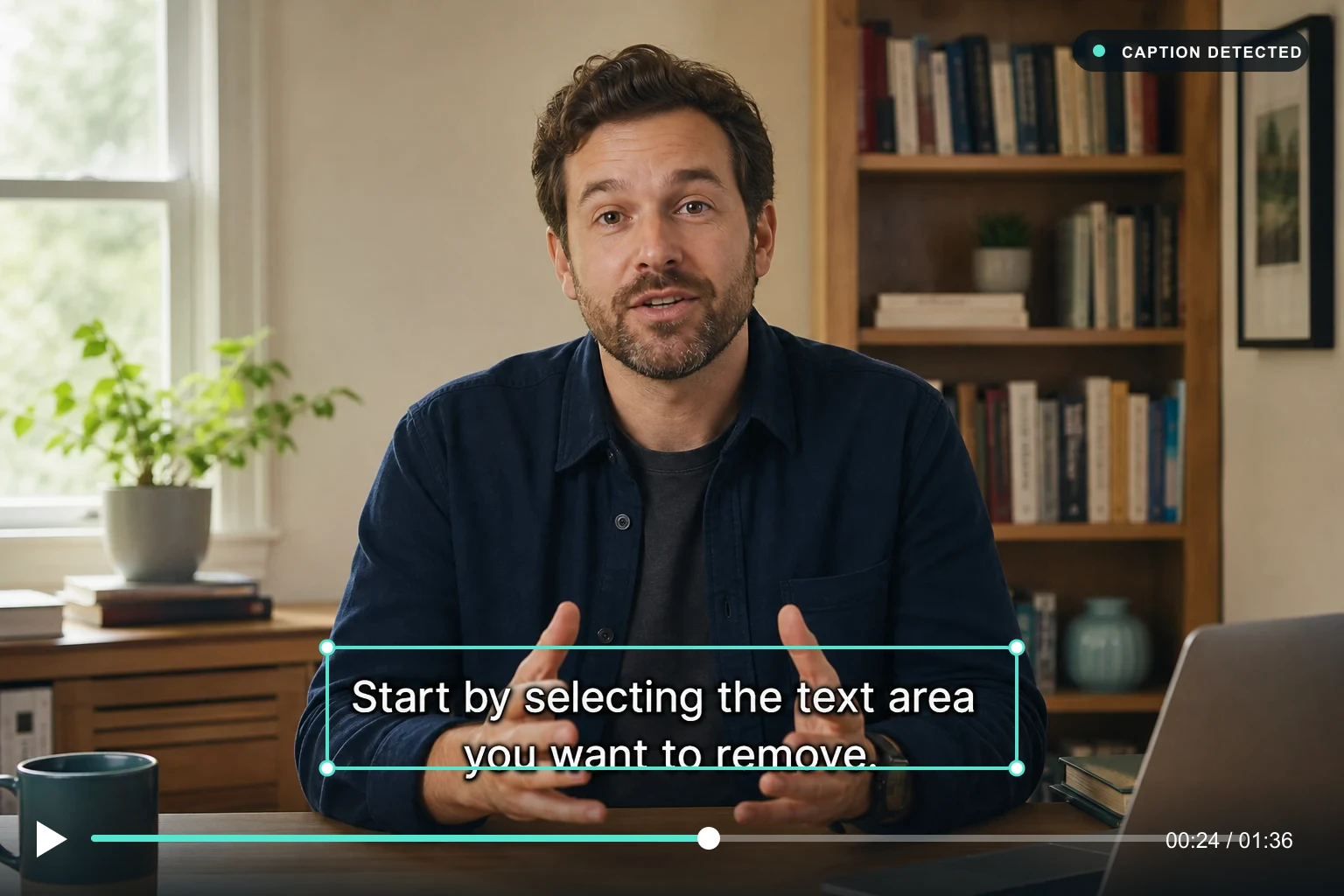
See how AI removes hardcoded text while preserving the original composition, color, and detail.
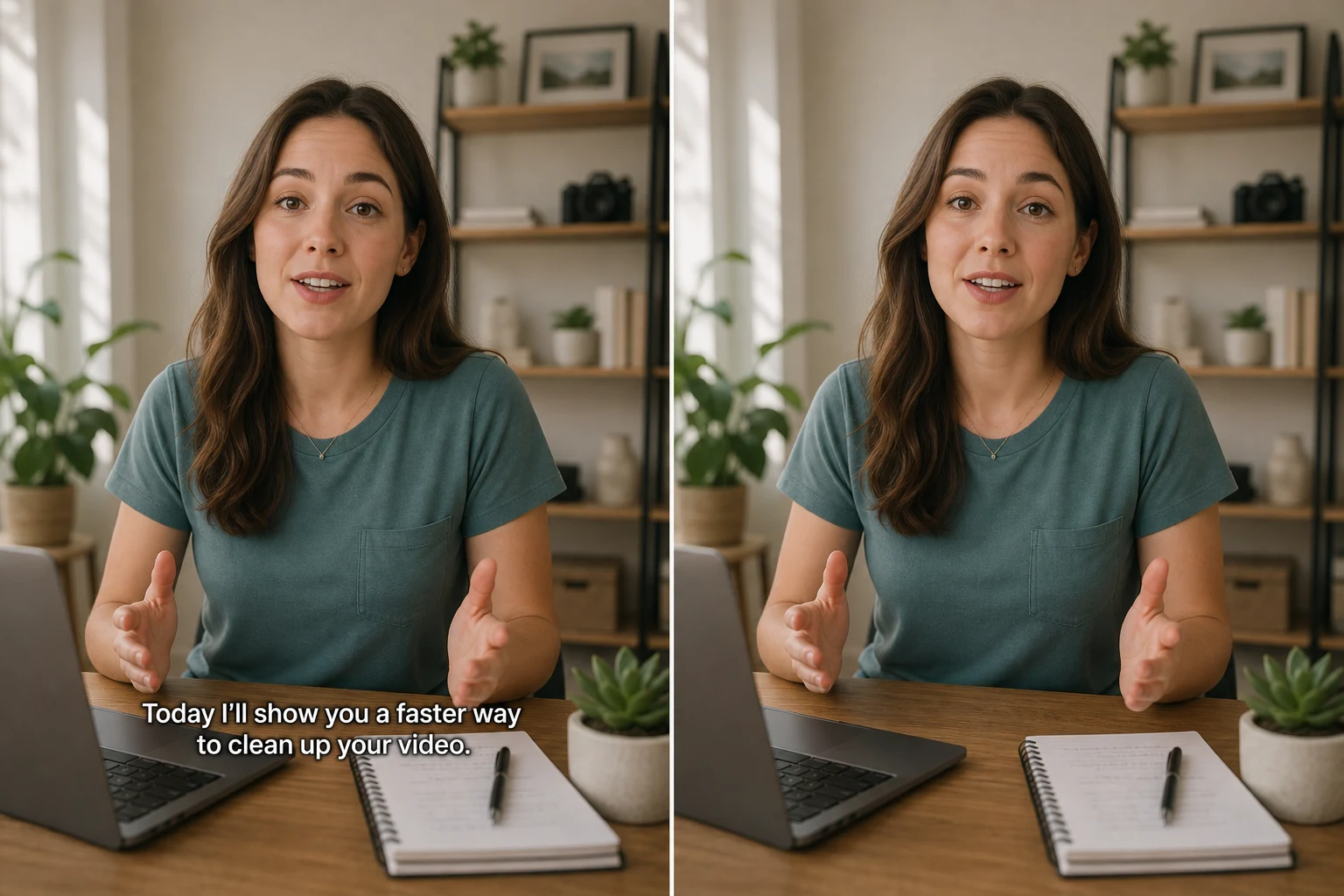
The subtitle strip is removed frame by frame, and the background is reconstructed without a crop, blur, or added watermark.
Blur, formats, free preview, privacy, and imperfect results — answered in plain language.
Upload a clip, mark the subtitle strip, and preview the cleaned result in your browser. For a detailed walkthrough, read our guide on how to remove text from a video.
Back to the tool