

Corner watermarks
Stock footage marks, screen recorder logos, and app watermarks sitting in a corner.

Remove any logo, watermark, or graphic overlay from your video — right in your browser. Create a free account, upload an MP4 clip, box the logo, and download the cleaned file. It works on your phone and desktop alike.
Preview your own result for free before processing the full video — no credit card required to preview.
The process takes about a minute and requires zero editing experience.
Drag and drop an MP4 file into the tool above.
Draw a rectangle over the logo or watermark — the tool detects the area and prepares to erase it.
The AI reconstructs the background behind the logo so the logo is gone without a trace and the framing stays intact.
No timeline, no keyframes, no learning curve. For other overlay types, try the main video text remover.
From corner marks to moving graphics — if it is burned into the frame, you can box it and erase it.
Stock footage marks, screen recorder logos, and app watermarks sitting in a corner.
Channel logos, brand marks, or text overlays placed over the footage.
Logos that follow a subject or drift across the frame. AI removal handles motion better than blur or mosaic patches.
Any graphic element baked into the video file itself — not a separate layer or track.
If your logo sits on a complex or moving background, AI removal is the only method that leaves a clean result. Blur and crop always leave a trace.
Working with a supported Veo or Gemini visible mark instead? Try the Gemini watermark remover for automatic browser-local removal.
Need to erase burned-in captions instead of a corner logo? Use the dedicated remove subtitles from video tool.
Illustrative examples of corner marks, moving watermarks, and stock preview overlays before and after removal.
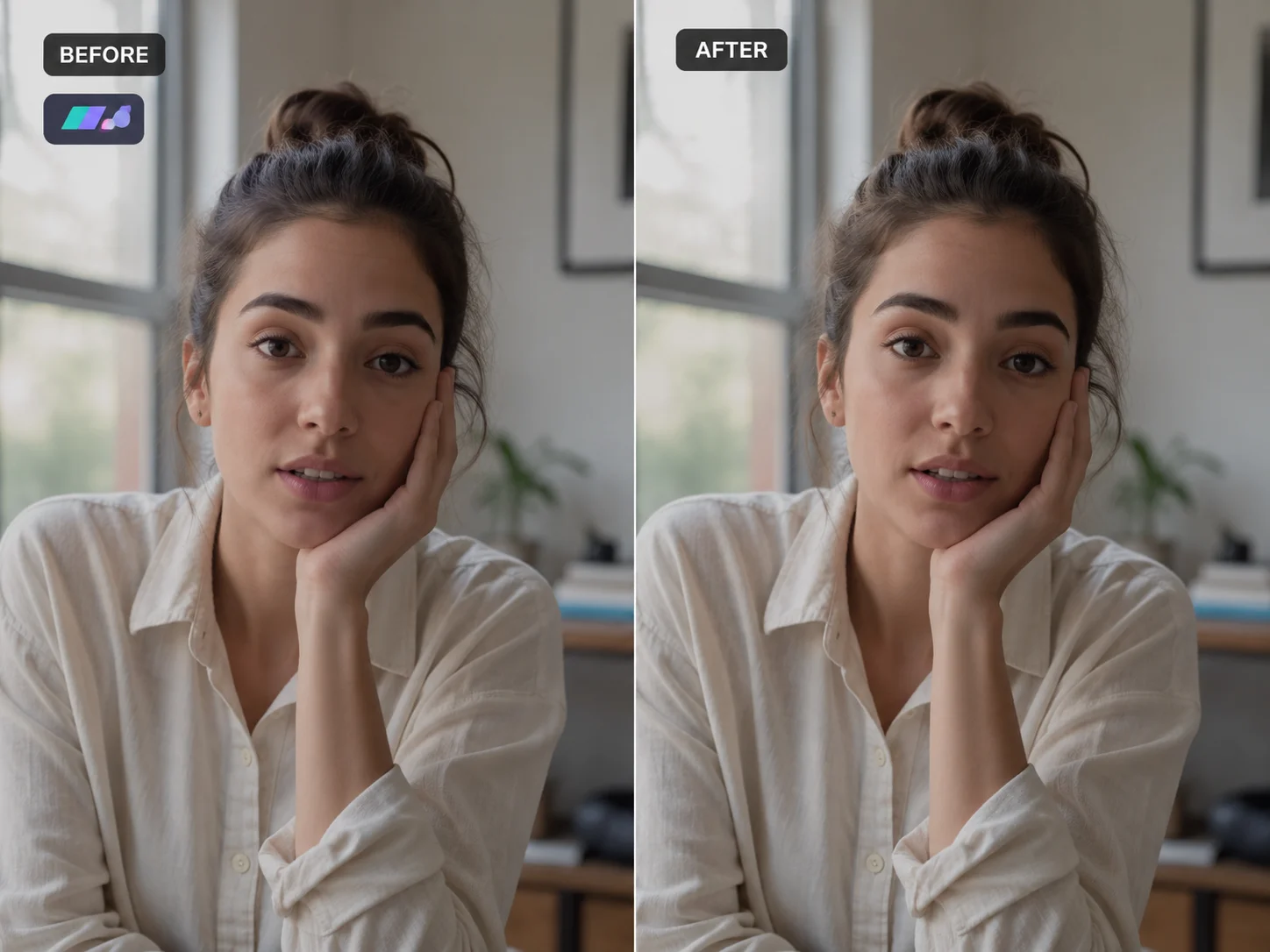
A corner channel mark removed frame by frame with the background rebuilt underneath.
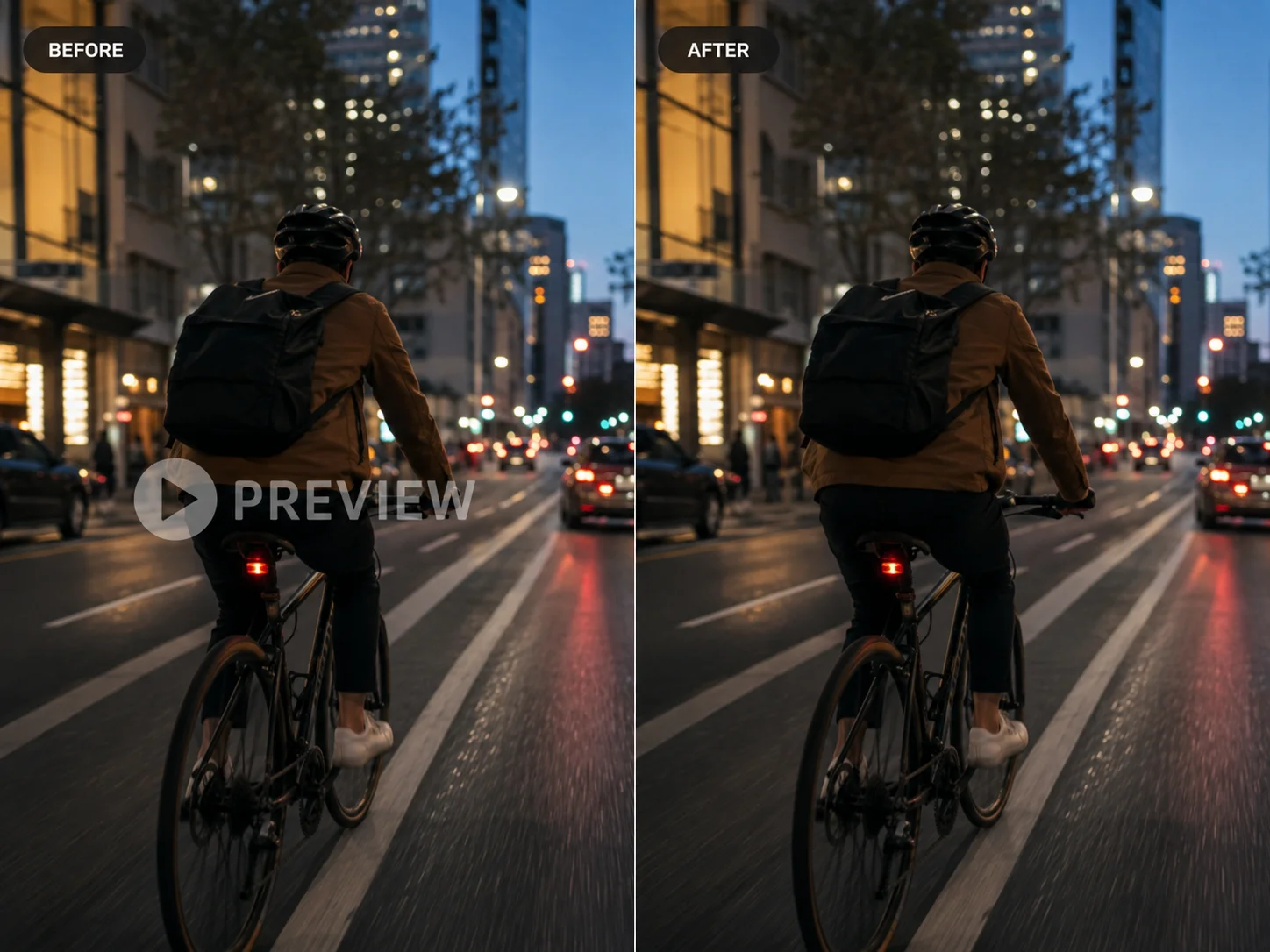
A drifting platform watermark cleaned without blur or a visible patch on moving backgrounds.
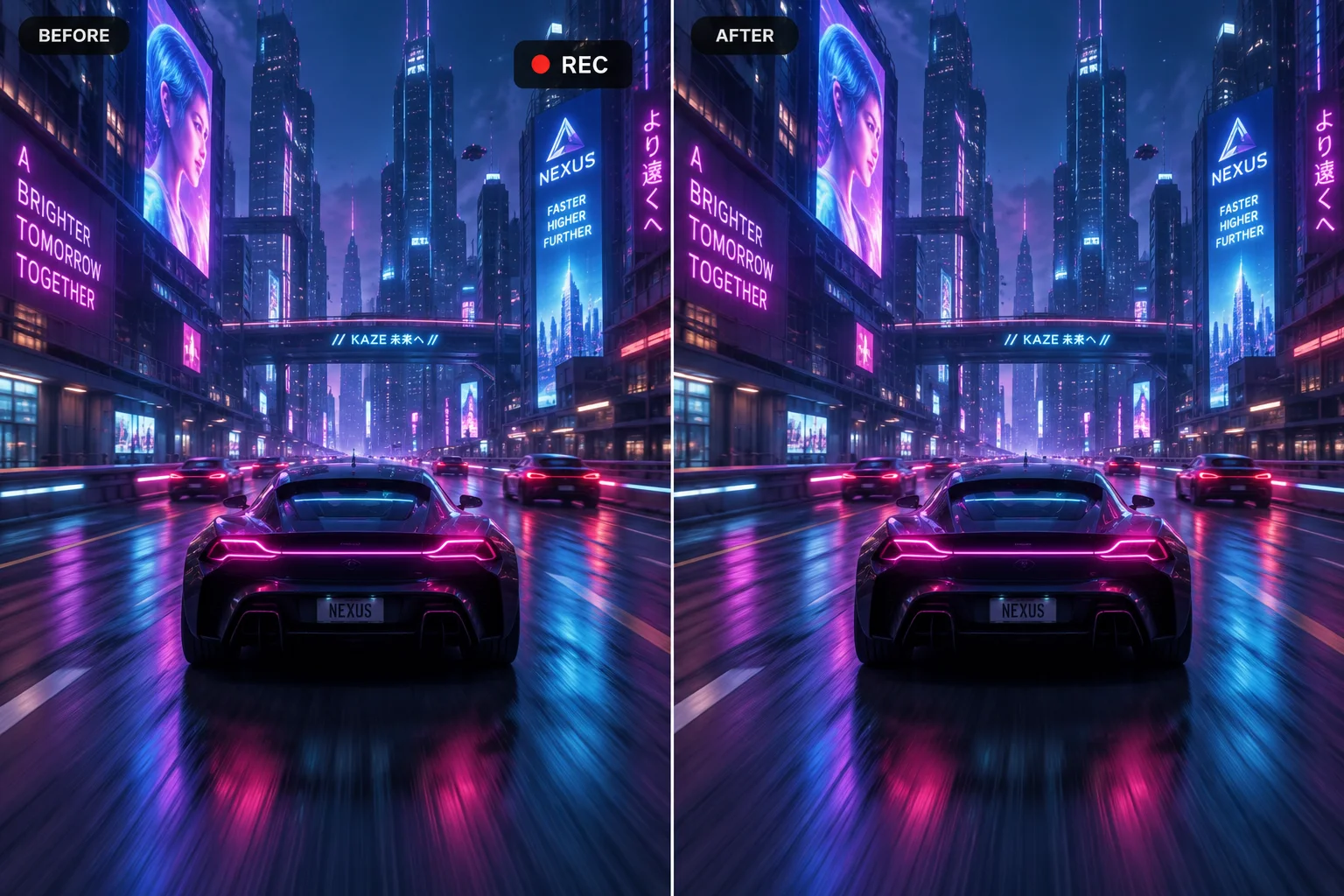
A pure-text preview watermark erased while preserving color, texture, and motion.
A logo is a design element, not a defect. It's usually placed deliberately — a corner bug, a center watermark, a lower-third badge — which means it often sits exactly where the interesting part of your shot is.
The manual workarounds fight the logo instead of removing it. Blurring leaves a soft smudge where the logo was, and the eye goes straight to it. Cropping works only if the logo lives near an edge — a center logo means losing the subject. Covering it with a shape trades one graphic for another, and on a moving logo the patch has to move with it, which never looks right.
Removing a logo properly means understanding why it's there: it's an overlay the original creator added on top of finished footage. Our AI separates that overlay from the video behind it, then rebuilds the surface underneath — the texture, the motion, the lighting — so the logo is gone without a trace and the composition stays exactly as it was framed.
Blur, formats, free preview, privacy, and imperfect results — answered in plain language.
Upload a clip, box the logo or watermark, and preview the cleaned result in your browser. For a detailed walkthrough, read our guide on how to remove text from a video.
Back to the tool